Overview
- I use Claude Code for pretty much everything now. Speaking beats typing
- Built-in STT is unreliable, especially with technical vocabulary
- So I built my own dictation tool for Ubuntu
- Plug in any STT provider, switch between them instantly
- Boost technical terms with a configurable keyterm list
Why I built it
- Built-in STT quality was inconsistent, especially with technical terms
- Wanted to pick the best provider for the job, not be locked into one
- Wanted keyterm boosting for words that generic STT models get wrong
Key features
- Multi-provider switching - swap between STT providers (Soniox, NVIDIA, Groq) instantly. Each provider implements a shared interface, so adding a new one is just a new file plus one registry entry, no changes to existing code
- Secure API keys - keys are stored in the OS keyring (GNOME Keyring), never written to disk in plaintext. Config only stores which provider and model are selected
- Keyterms - a configurable vocabulary boost list, applied to whichever provider is active. Useful for technical terms that generic STT gets wrong
- Configurable per provider - model and language settings per provider, all through a settings window
- One-click copy - transcribed text lands in an editable window, copy it out with one button
- CLI-first - start and stop from the terminal:
dictation start
dictation stop
Update (2026-08-17) — global keyboard shortcuts
- Problem: starting a dictation meant opening a terminal and typing
dictation start, every time - Problem: stopping meant clicking back into the app window to hit Stop
- Problem: the window kept getting buried behind whatever else was open, so I had to keep hunting for it just to bring it back
- Fix: a shortcut combo, always available, no matter what’s on screen
Super+Shift+D- start dictating. Launches the app if it’s not running yet, or brings it to the front if it’s already openSuper+Shift+S- stop recording, app stays running in the backgroundSuper+Shift+Q- quit. Finishes saving the transcript first, doesn’t kill it mid-sentence
Update (2026-08-18) — auto-copy to clipboard
- Problem: every transcript needed a manual “Copy” click before you could paste it
- Fix: text now syncs to the clipboard automatically as you speak
- Result: speak, then paste — no clicks, no mouse, nothing in between
Screenshots
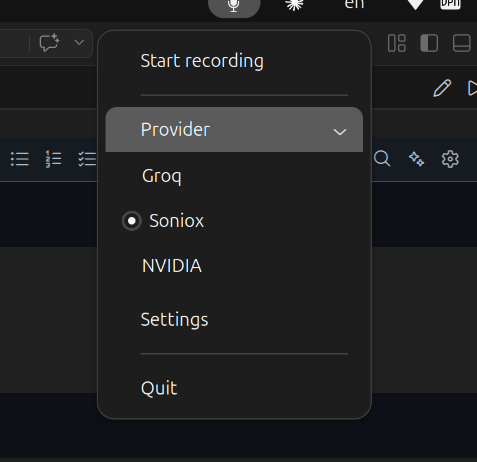 Tray menu - switching providers on the fly
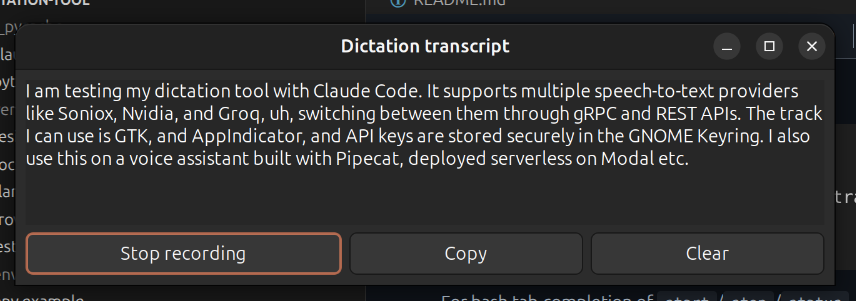 Transcript window - live dictation, technical terms transcribed correctly
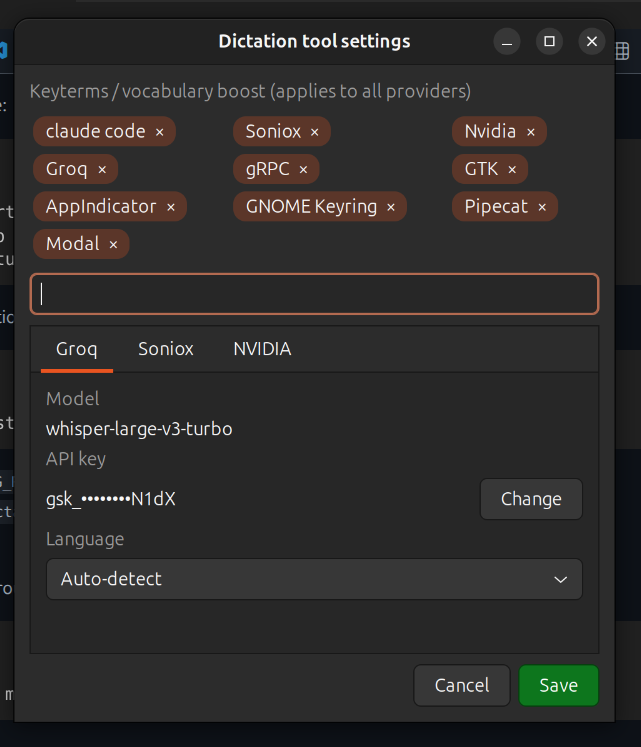 Settings window - keyterms and per-provider configuration
Contributing
Pull requests and issues are welcome.